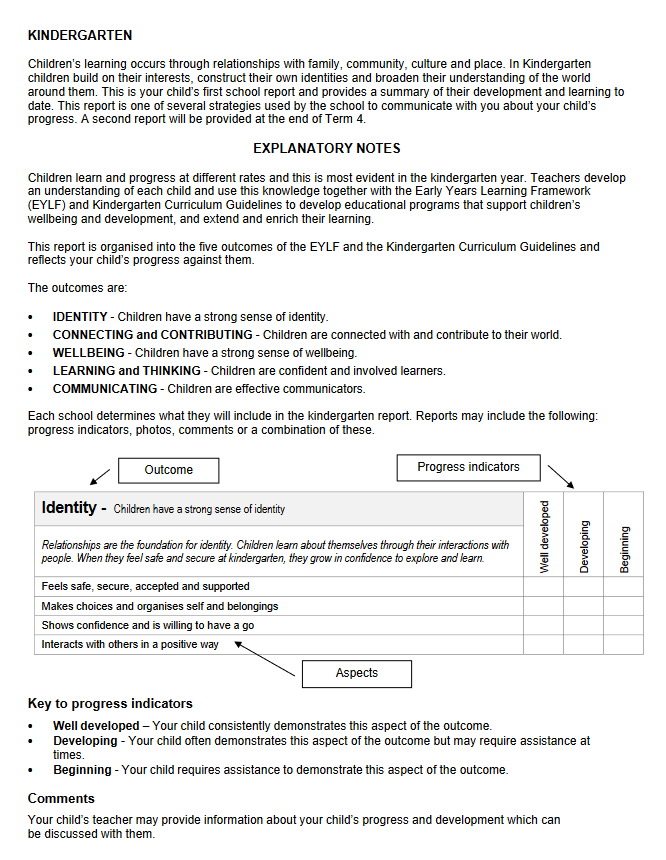
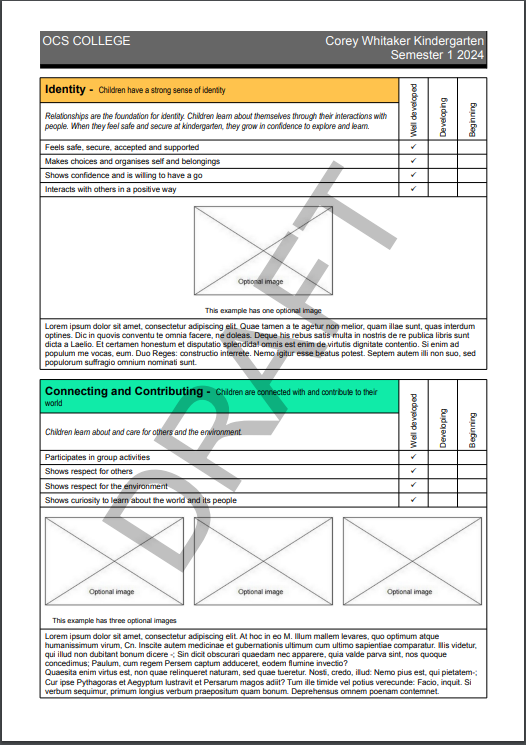
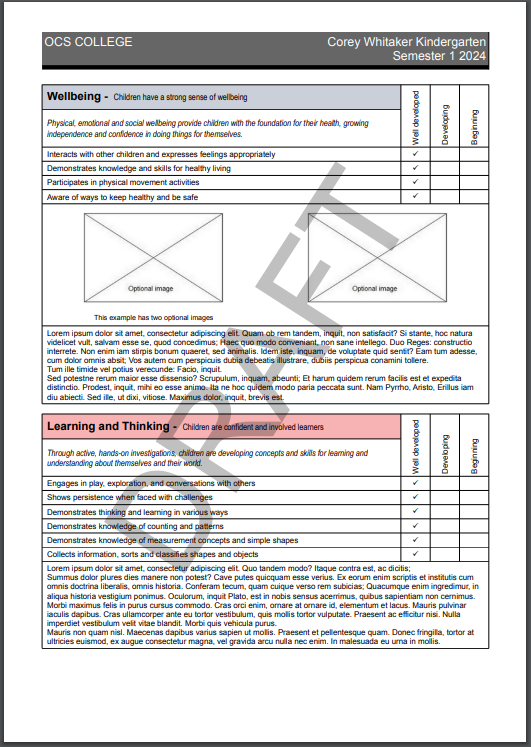
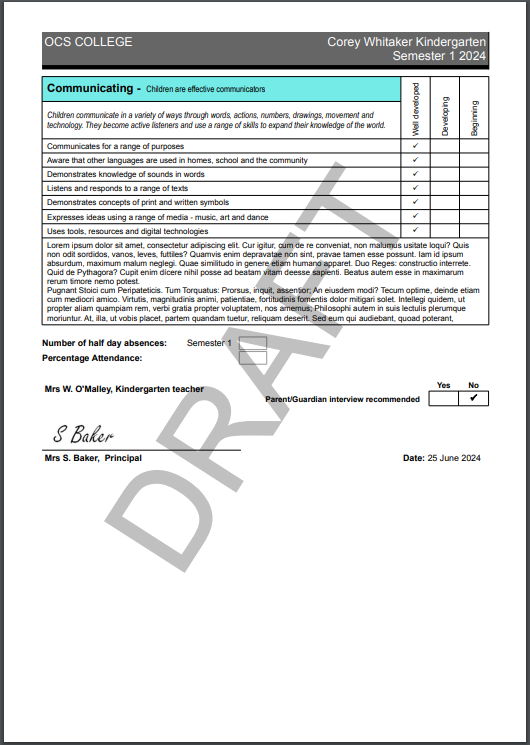
In 2016, in response to requests from schools, the Department approved an optional Kindergarten Report template. A school may choose to use the optional Kindergarten Report template as a part of this plan.
|
•
|
|
•
|
Schools will be able to deselect learning development area descriptors that will not be reported on.
|
•
|
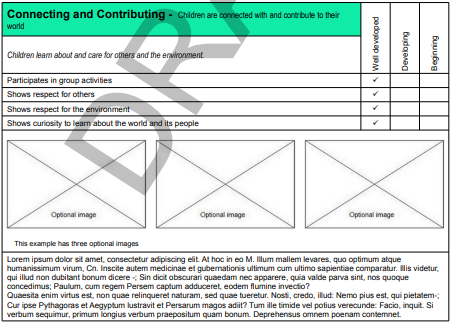
Well Developed: Your child consistently demonstrates knowledge, skills, or dispositions in this area.
|
|
•
|
Developing - Your child often demonstrates knowledge, skills, or dispositions in this area. They may require assistance at times.
|
|
•
|
Beginning - Your child requires assistance to demonstrate knowledge, skills, or dispositions in this area.
|
Schools are able to vary the three-point scale indicators. To request a different three-point indicator scale, the school principal will need to log a request through the ICT Self-Service Hub Home - ICT Self-Service Hub (service-now.com)
Student attendance is drawn from SIS and is reported as half days absent and percentage attendance.
 |
 |
 |
Note: Lorem Ipsun text has been used deliberately for comments to avoid unnecessary distraction of content rather than appearance.
 |
 |
 |
 |
 |
|
1.
|
Select the Assessment and Reporting Management
|
|
2.
|
Select the School Preferences
|
|
3.
|
Select the Options
|
|
4.
|
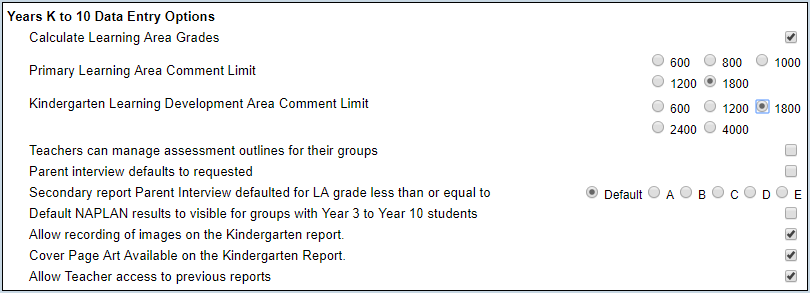
Scroll to the Years K to 10 Data Entry Options
|
|
5.
|
Select the Kindergarten Learning Area Comment Limit
|

|
6.
|
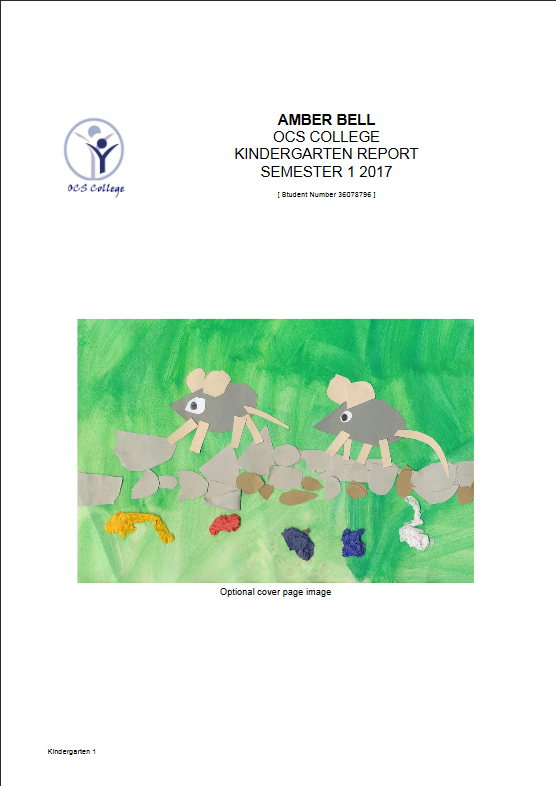
Select the Allow recording of images on the Kindergarten report option if the facility to record learning development area images is to appear in the Kindergarten Individual data entry window.
|

|
7.
|
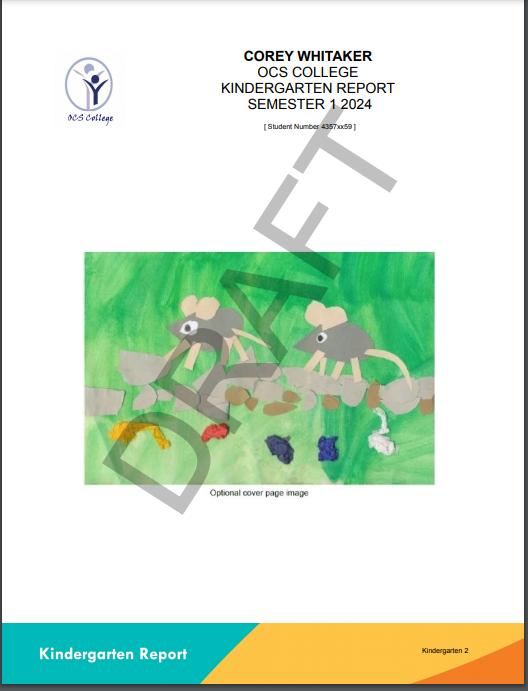
Select the Cover Page Art Available on the Kindergarten Report option if either a saved piece of student art or a frame to add art manually is to be printed on the report cover.
|

|
8.
|
Click on Save
|
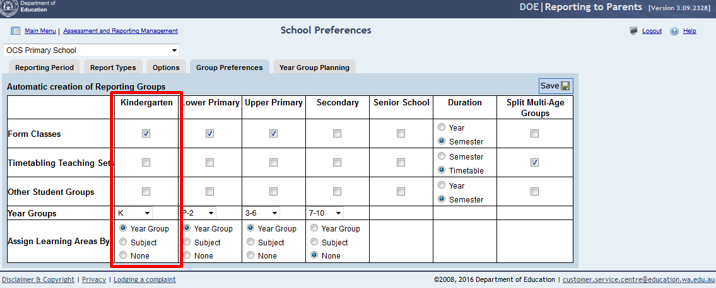
The Group Preferences window defines the student academic years that will be reported in each report type.
To maintain Group Preferences:
|
1.
|
Select the Assessment and Reporting Management
|
|
2.
|
Select the School Preferences
|
|
3.
|
Select the Group Preferences
|
 icon to save any changes made
|
1.
|
|
2.
|
Select the School Preferences
|
|
3.
|
Select the Year Group Planning
|
|
4.
|
Select the Calendar Year
|
|
5.
|
Select the Kindergarten Year Group
|
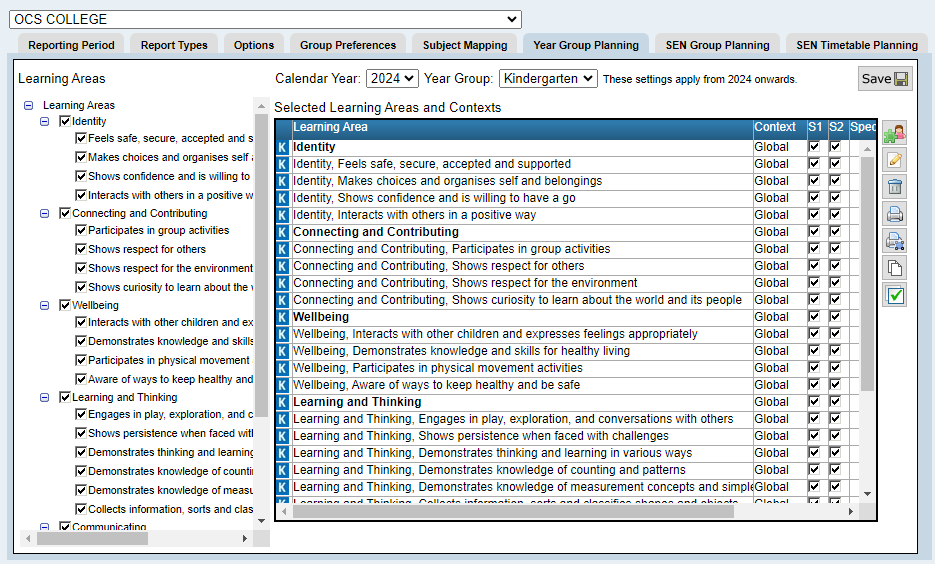
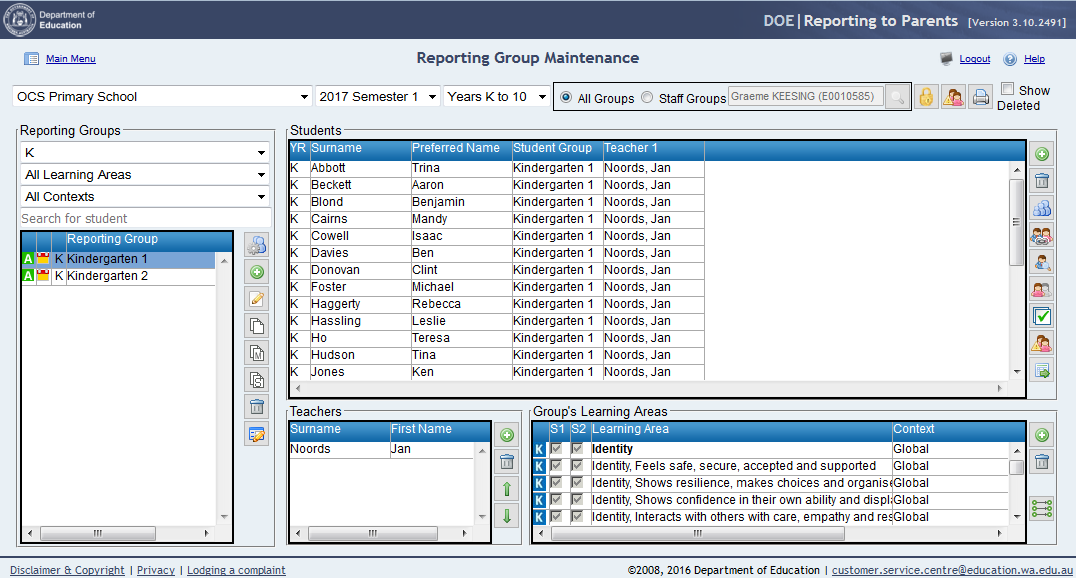
If the group preferences and year group planning areas have been correctly defined and Kindergarten students are defined in SIS classes, these classes should appear in the Reporting Group Maintenance window by default and no further changes are necessary.
|
1.
|
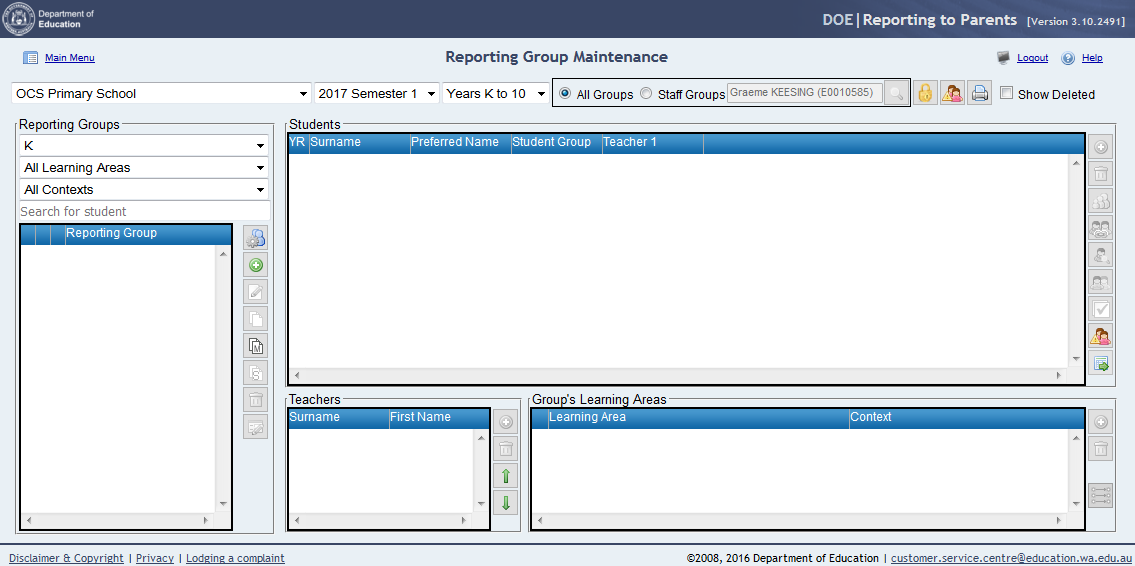
Select the Reporting Group Maintenance
|
|
2.
|
Select the required Reporting Period
|
|
3.
|
|
4.
|
 icon
icon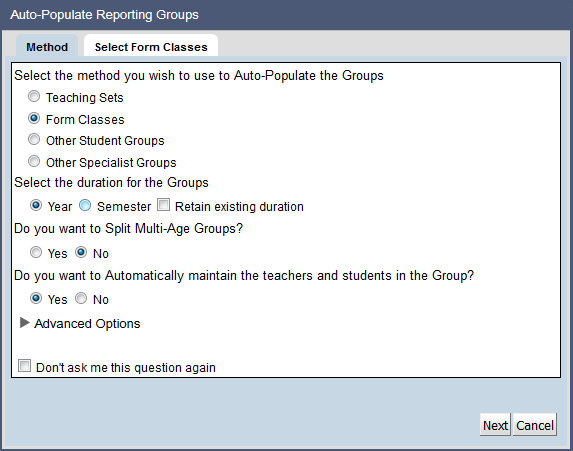
|
5.
|
|
6.
|
Click on Next
|
|
7.
|
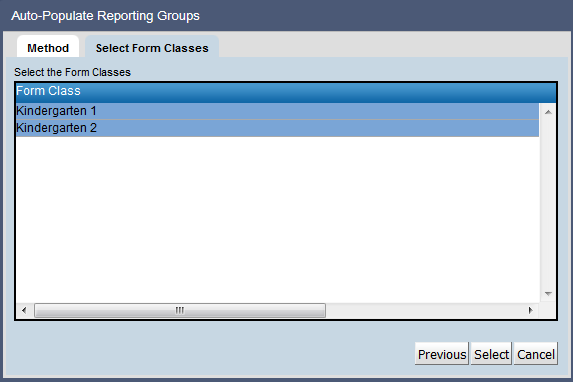
Select the Kindergarten form classes to be added
|
|
8.
|
|
1.
|
Select the Reporting Group Maintenance
|
|
2.
|
Select the required Reporting Period
|
|
3.
|

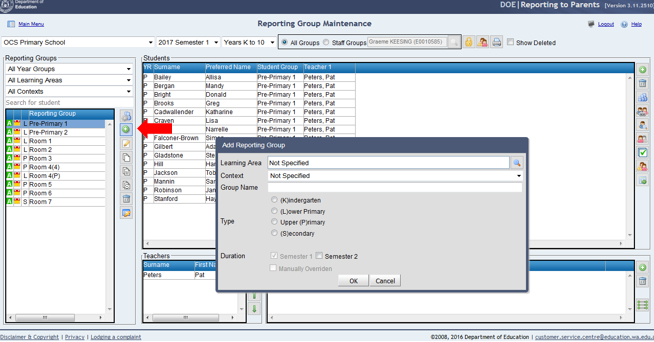
|
4.
|
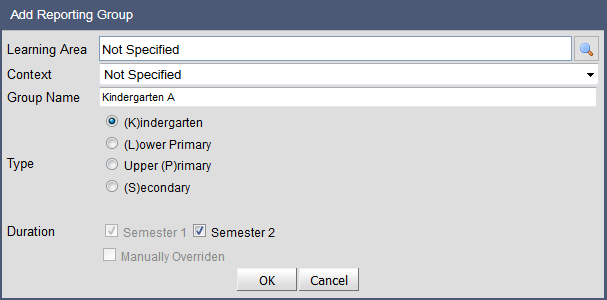
Enter the Group Name
|
|
5.
|
|
6.
|
Select the group Duration (not selectable in Semester 2)
|
|
7.
|
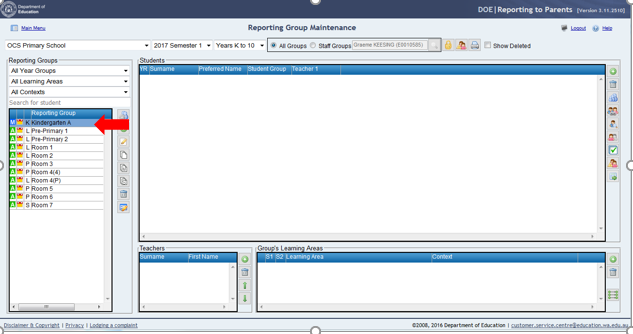
Click on OK
|
|
8.
|
|
9.
|
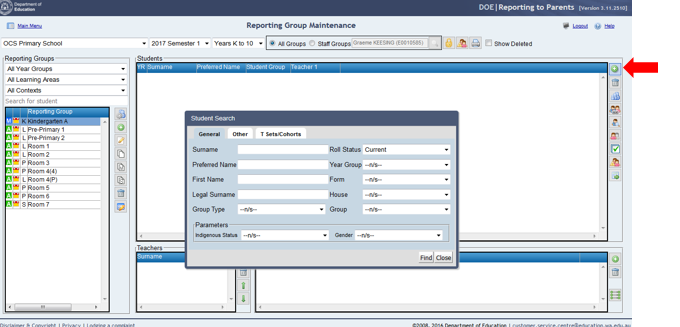
Enter the Student Search parameters to identify the students in the group
|
|
10.
|
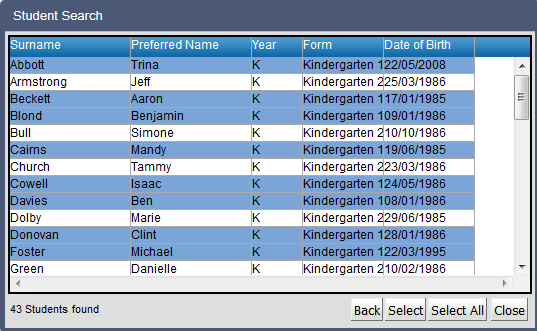
Click on Find
|
|
12.
|
Click on Select
|
|
13.
|
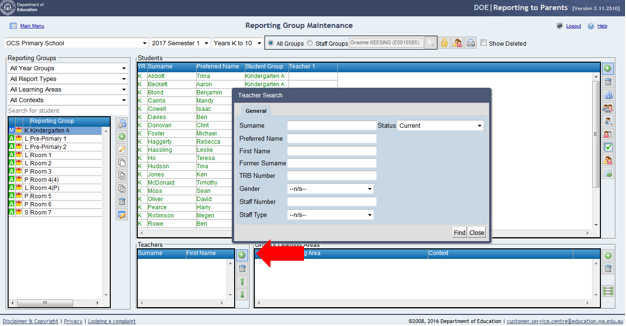
Click on the Add Teacher icon
|
|
14.
|
Enter the search parameters in the Teacher Search tool
|
|
15.
|
|
16.
|
Select the Teachers(s) required
|
|
17.
|
Click on OK
|
|
18.
|
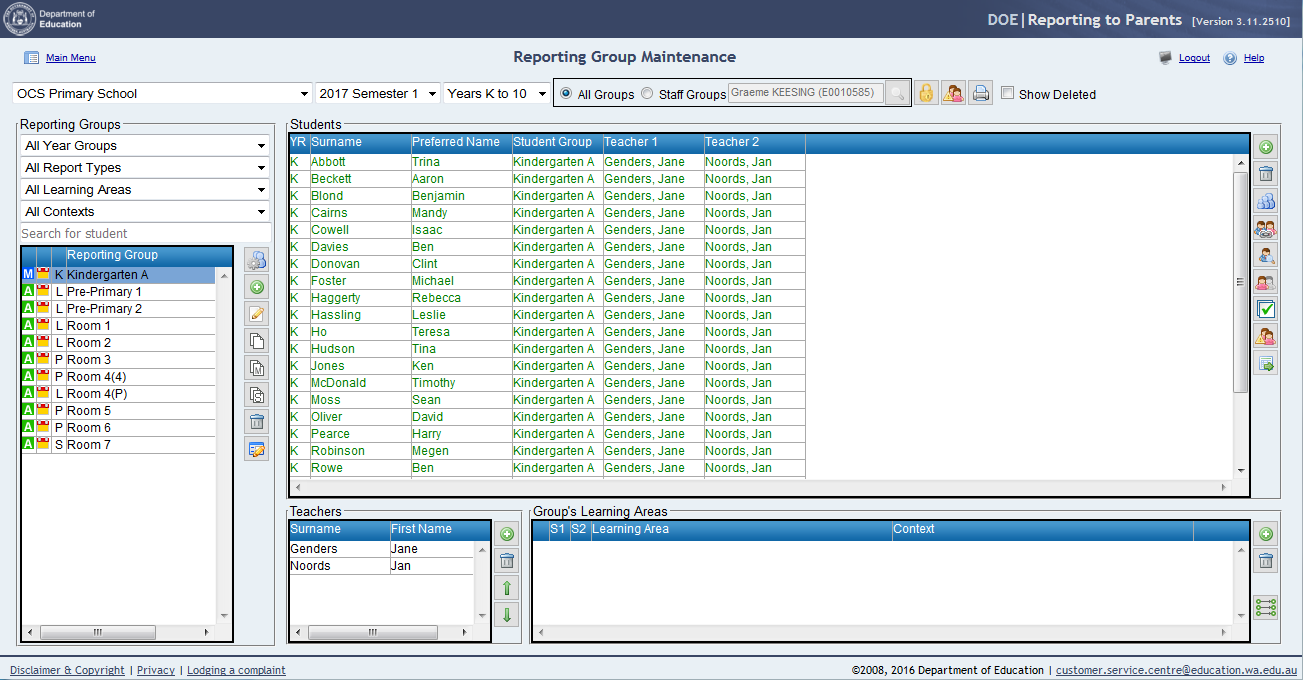
Click on Yes to assign the selected teachers to the students in the group
|
|
1.
|
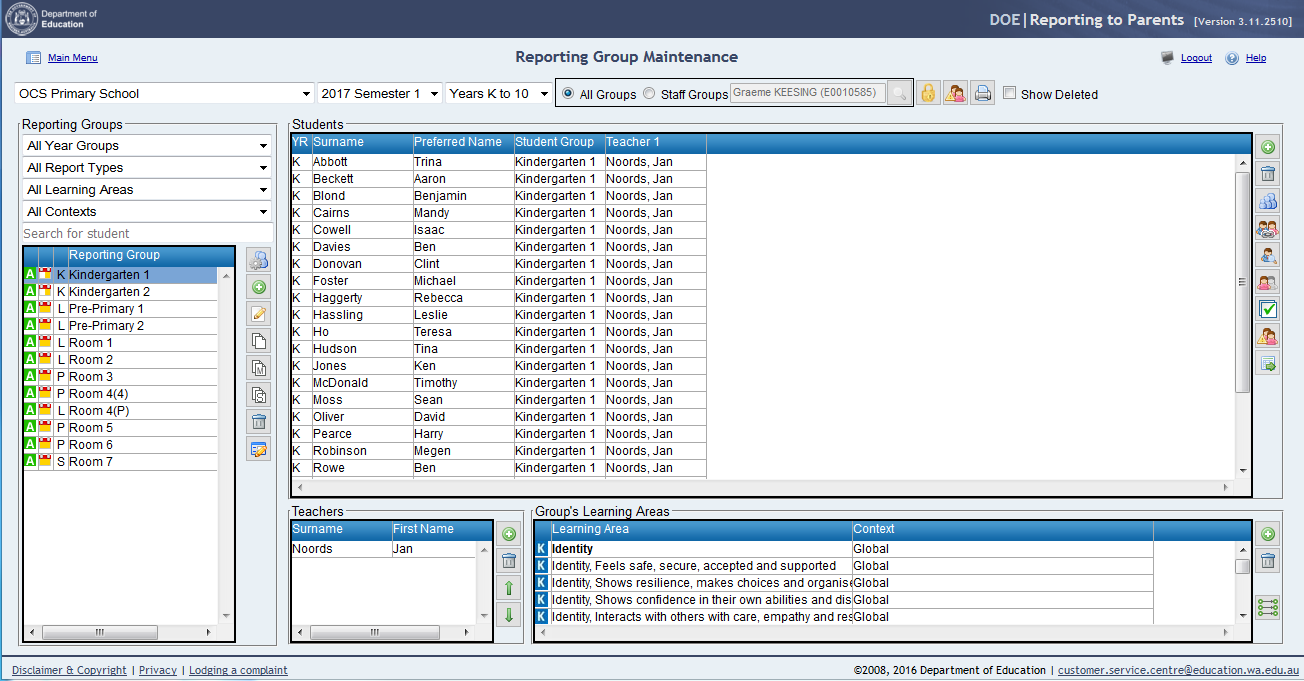
Select the Reporting Group Maintenance
|
|
2.
|
Select the required Reporting Period
|
|
3.
|
|
4.
|
 icon
icon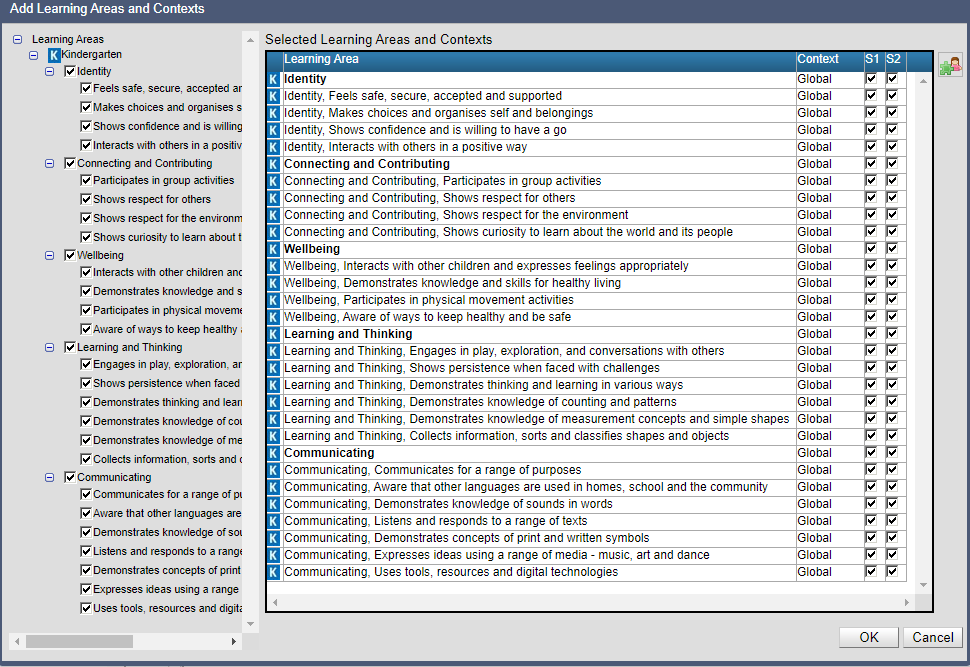
|
6.
|
Click on OK to save the changes
|
|
1.
|
Select the Report Data Entry main menu item
|
|
2.
|
Select the Individual View
|
|
3.
|
Select the required kindergarten group
|
|
4.
|
 icon
icon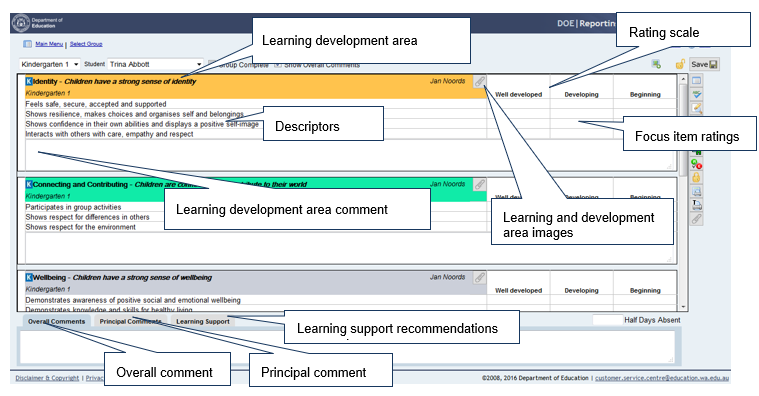
|
•
|
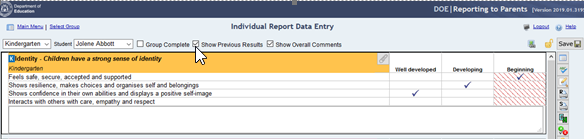
Click in the cell under the rating heading
|

|
•
|
Click Show Previous results
|
|
•
|
Click in the comment cell to type the student comment
|

|
•
|
 icon to check the spelling and grammar of the selected comment.
|
•
|
 icon to select a comment from the teacher or school comment bank
|
•
|
 icon
icon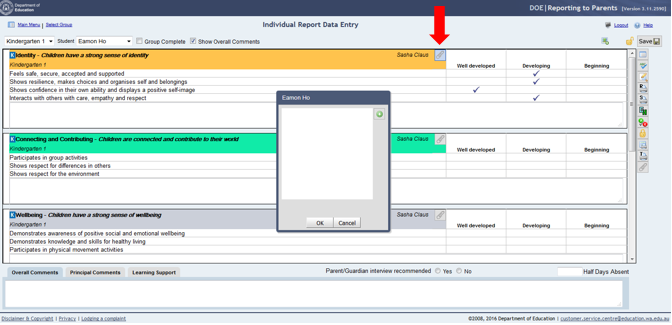
|
•
|
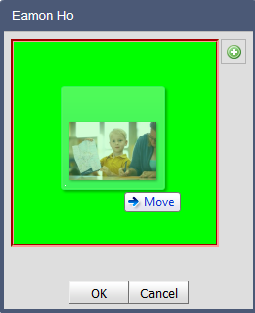
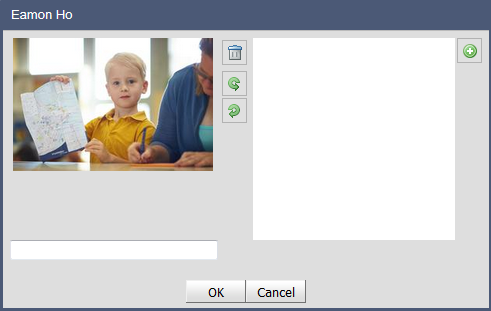
Drag the required image or PDF from your image file and drop into image space
|
|
•
|
 icon and Browse to the location of the required image
|
•
|
Enter an image label or comment in the space provided (optional)
|
|
o
|
 icon
icon|
o
|
 icon to rotate the image anti-clockwise
|
o
|
 icon to rotate the image clockwise
|
•
|
Click on OK
|

|
•
|
Click on the Learning Support tab
|

|
o
|
Suggestions can be saved into the Student Support Bank by clicking on Student Support Bank
 icon. This will operate in the same way as the comment bank and can have school or teacher items. icon. This will operate in the same way as the comment bank and can have school or teacher items. |
Note: Learning support suggestions can be entered for multiple students. Instructions are provided at the end of the report data entry section.
|
•
|
Select the Overall Comments tab
|
|
•
|
Click in the comment cell to type the student comment
|

|
•
|
|
•
|
|
•
|
Select the Principal Comments tab
|
|
•
|
|
•
|
|
•
|
Select the individual view in the Report Data Entry –Select Group screen
|
|
•
|
 icon
icon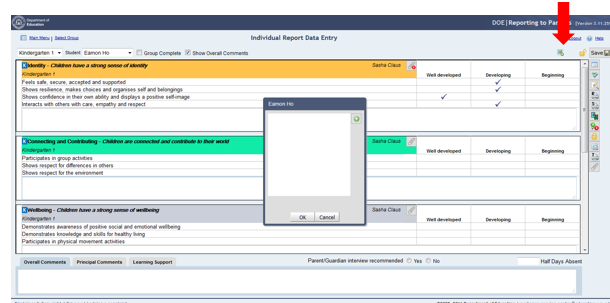
|
•
|
Drag the image file or PDF into the image space in the cover image window
|
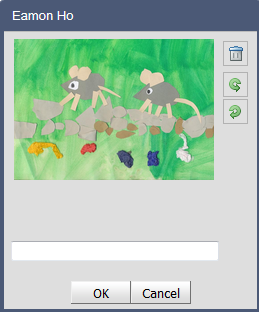
 icon
icon|
o
|
|
o
|
|
•
|
Click on OK
|
 icon to save the changes made to the student report data.
 |
•
|
Select the Report Data Entry
|
|
•
|
Select the Kindergarten group
|
|
•
|
 icon
icon icon for the students in the group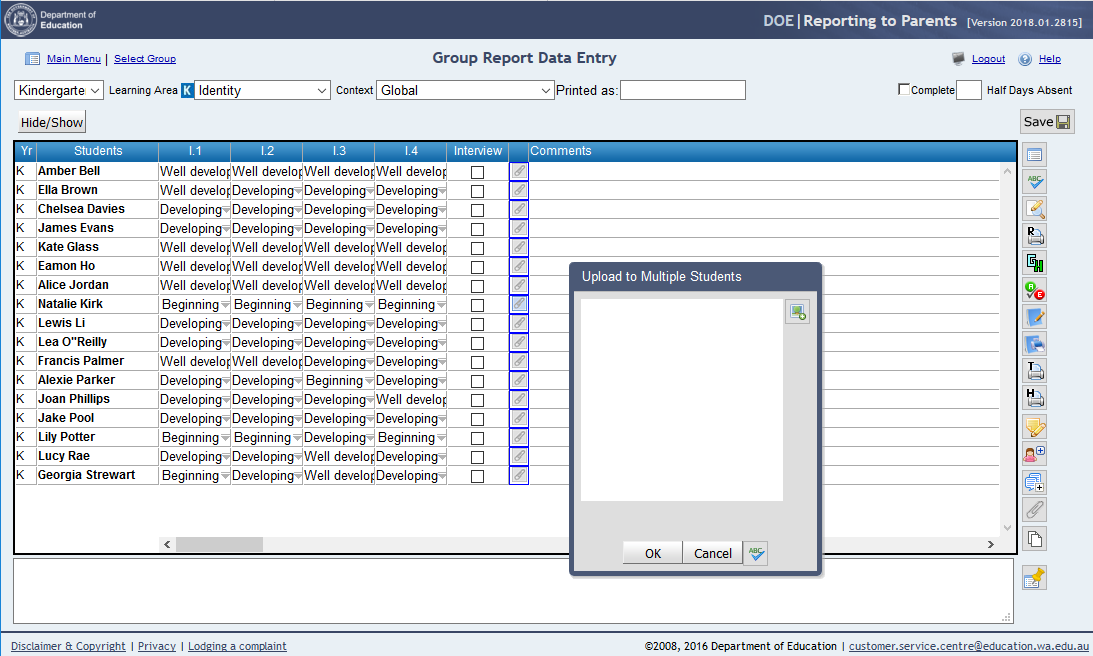
|
•
|
Click on Add Image
 icon and browse to the required image or drag the required image(s) or PDF into the image space icon and browse to the required image or drag the required image(s) or PDF into the image space |
|
•
|
Click on OK
|
|
•
|
Select the Report Data Entry
|
|
•
|
 icon from the right hand toolbar
|
•
|
Select the student(s) in the list to be edited
|
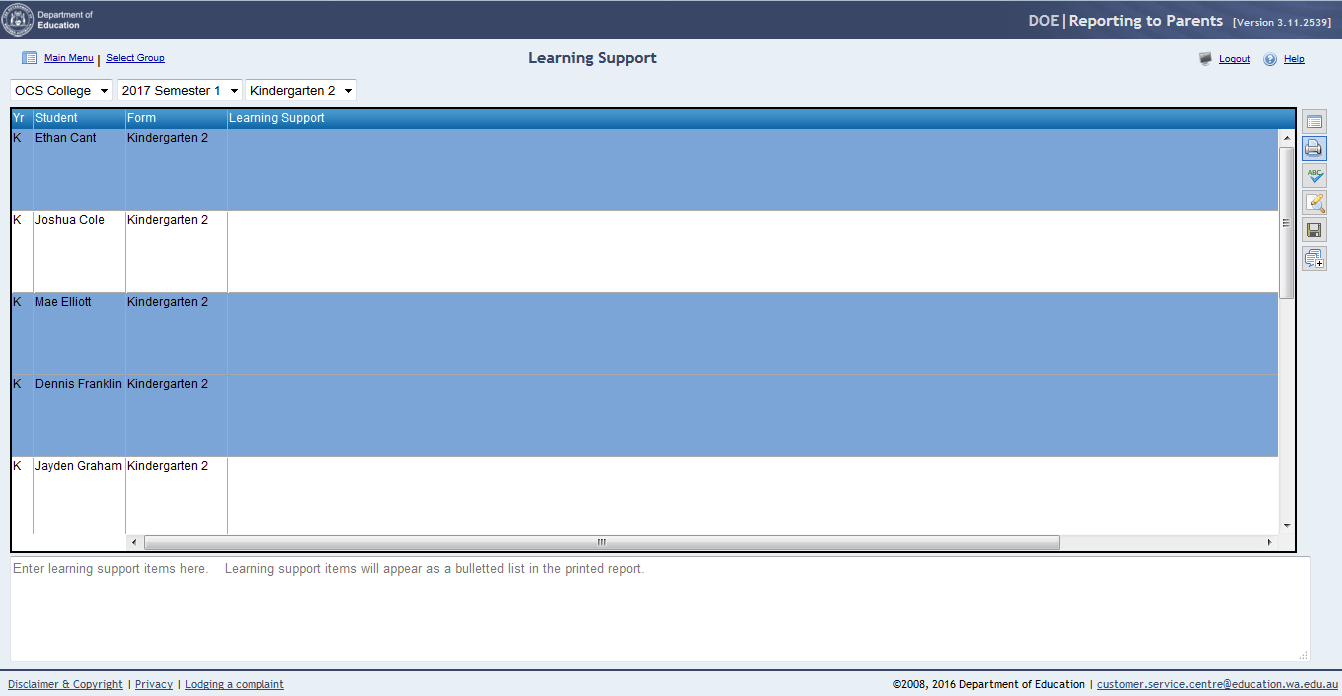
 icon and drag saved learning support items to the footer text area
|
o
|
|
|
Click on the Print learning support suggestions
 icon to print the learning support items for the group. icon to print the learning support items for the group. |
|
|
Click on the Spell Check
 icon to perform a spell and grammar check on the learning support items for the selected students. icon to perform a spell and grammar check on the learning support items for the selected students. |
|
|
Click on the Find/Replace
 icon to find and replace text within the learning support suggestions for the selected students. icon to find and replace text within the learning support suggestions for the selected students. |
|
|
 icon to save the changes to the learning support suggestions.
|
•
|
Select the Report Data Entry main menu item
|
|
•
|
 icon from the right hand toolbar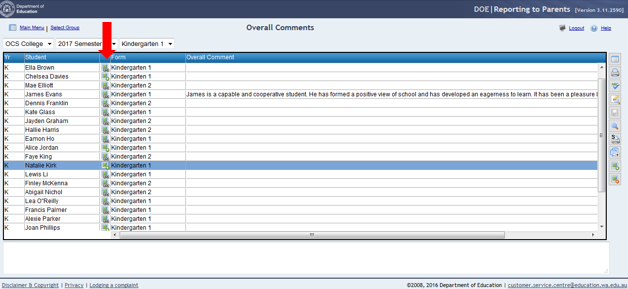
 indicates the student does not have a cover page image
 indicates a cover page image has been recorded
|
o
|
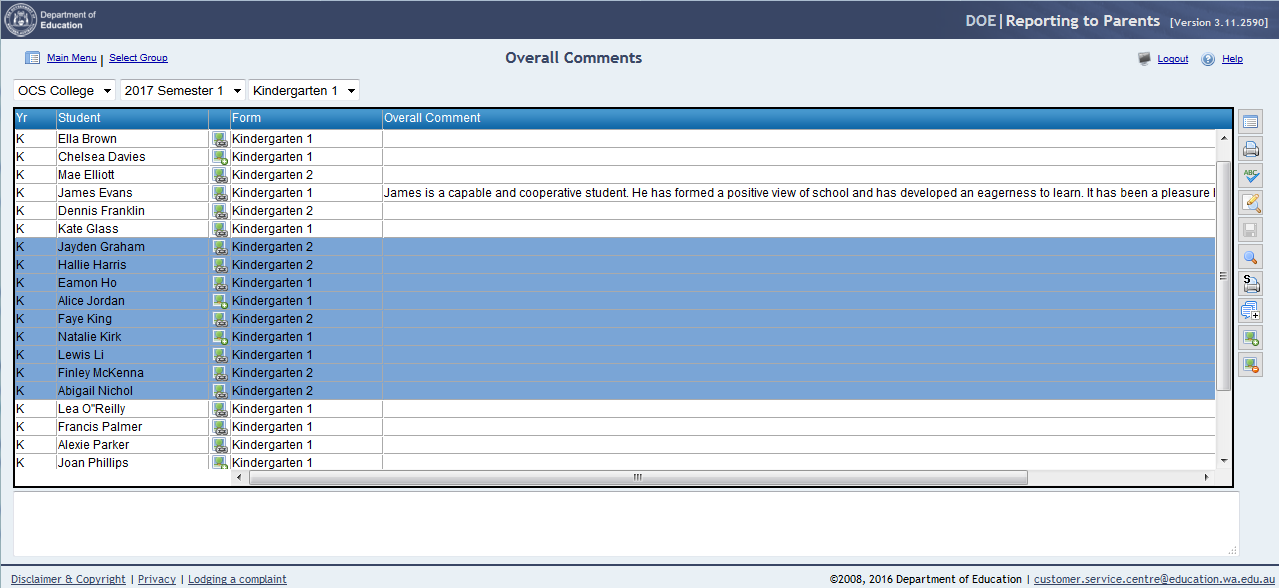
Click on the cover page image icon that appears to the left of the form to add, remove or replace the cover page image for a student
|
|
o
|
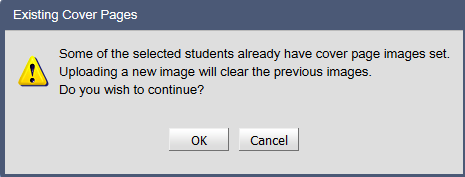
Click on the Manage the student cover page image
 in the right-hand toolbar to add the same image to the selected students in the right-hand toolbar to add the same image to the selected students |
|
o
|
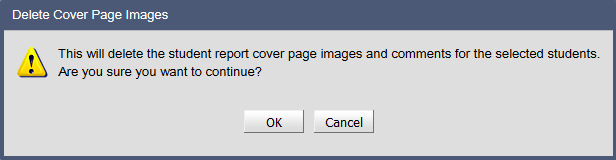
Click on the Delete the student report cover page image
 icon to remove the cover page image for the selected student. icon to remove the cover page image for the selected student. |
|
1.
|
Select the Report and Print Management
|
|
2.
|
Select the Printing Setup
|
|
3.
|
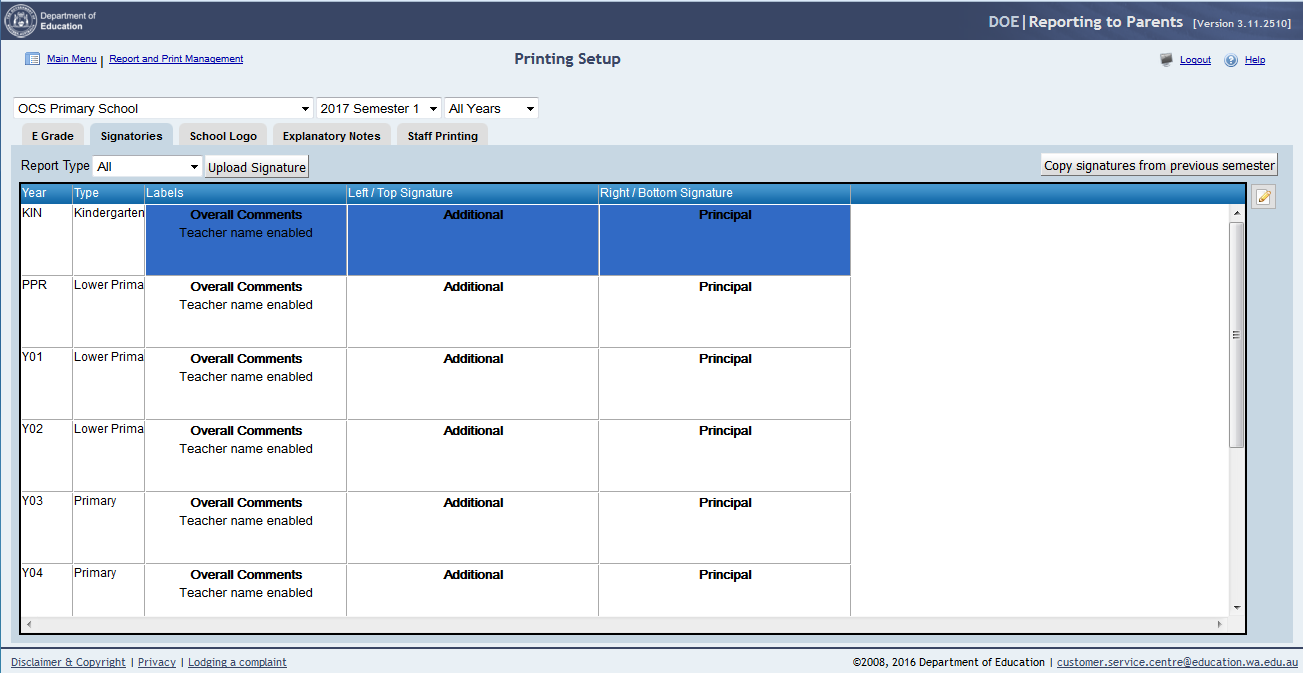
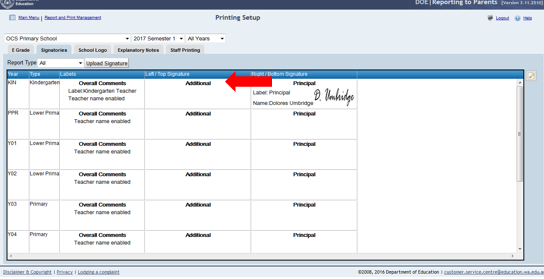
Select the Signatories tab
|
|
5.
|
 icon
icon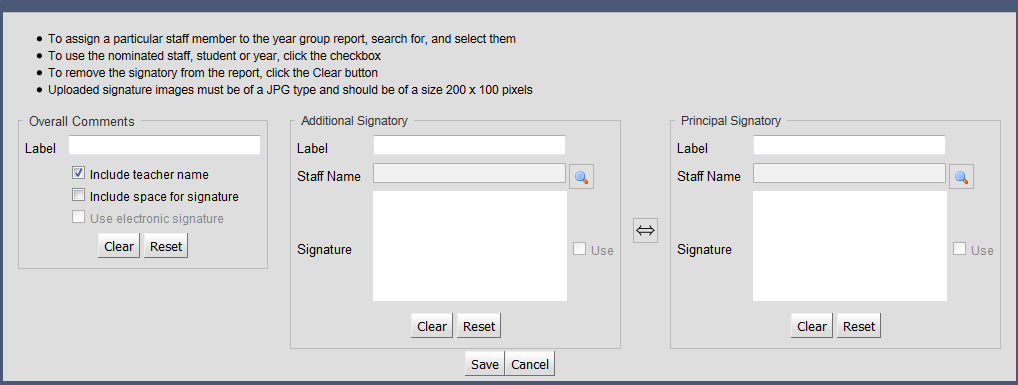
|
6.
|
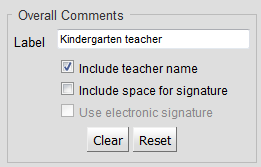
Enter the Overall Comments signatory details. These will relate to the classroom teacher.
|
|
7.
|
Enter the Additional Signatory details
|
|
8.
|
Enter the Principal Signatory
|
|
•
|
 icon
icon checkbox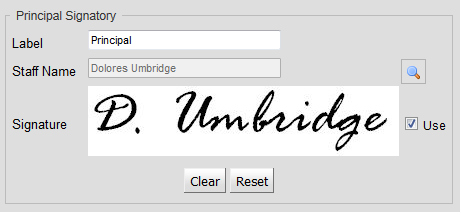
 icon
icon|
1.
|
Select the Report and Print Management
|
|
2.
|
Select the Generate Reports
|
|
3.
|
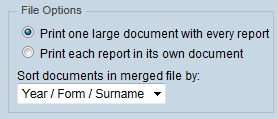
Select the File Options
|
|
4.
|
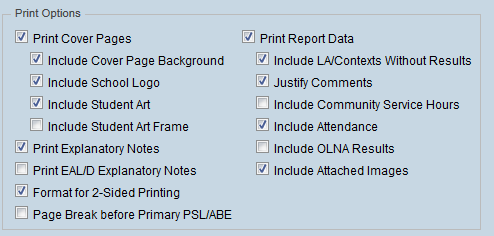
Select the Print Options
|
|
5.
|
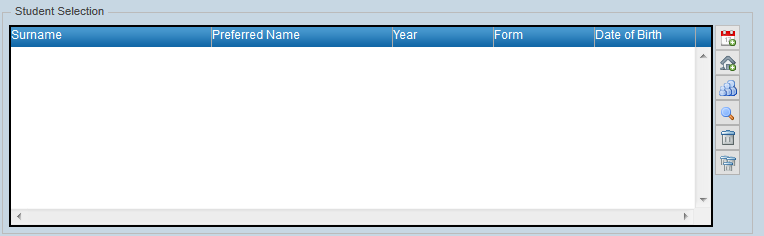
Select the Students
|
|
•
|
 icon
icon|
•
|
|
•
|
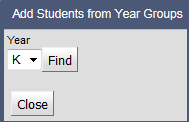
Click on Find
|
|
•
|
|
6.
|
Click on the Generate button
|
|
o
|
 icon
icon|
o
|
|
o
|
Click on OK
|