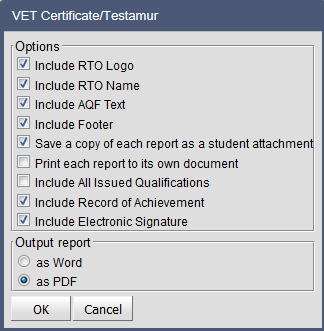
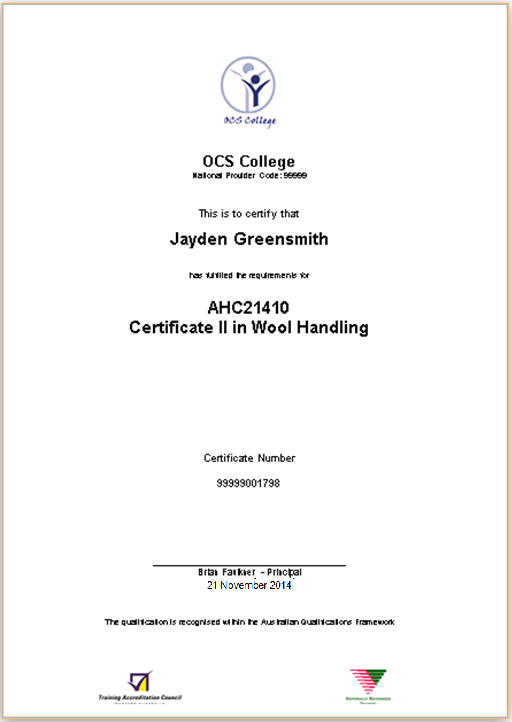
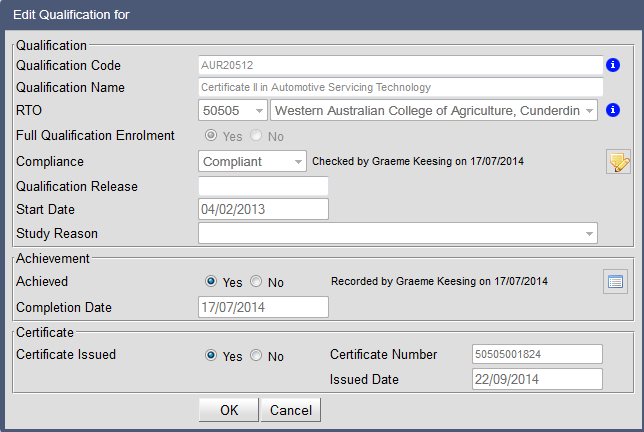
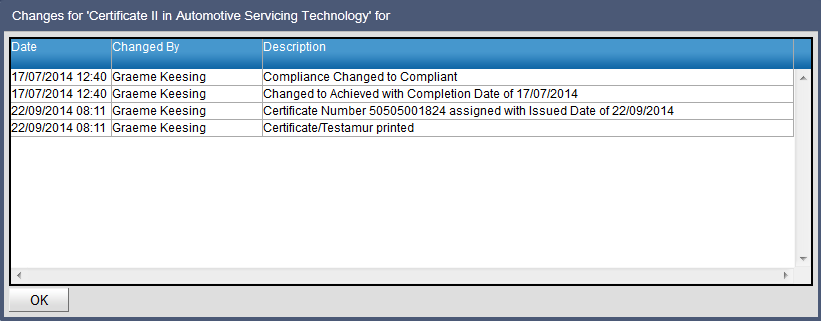
Print Certificate/Testamur – For RTO Schools Only The Print Certificate/Testamur function will only appear for RTO schools and is only active for qualifications delivered by the school as the RTO. Only qualifications that have been achieved and have been issued with a certificate number can be printed. To print the Certificate (Testamur): 1. Select the student qualifications that have been issued. 2. Click on the Print Certificate/Testamur report icon. 3. Select the required options. Option choices will be determined by the choice of printing on pre-printed stationary or printing a full certificate with all required components. When the ‘Include RTO Logo’ or ‘Include RTO Name’ options are de-selected, the RTO logo and name will not be included so that pre-printed stationary can be used. When the ‘include footer’ option is selected, this will print the required TAC, AQF and NRT logos. When the ‘include AQF text’ option is selected, if the ‘include footer’ option is also selected, only the TAC and NRT logos will be printed. The “Save a copy of each report as a student attachment” option defaults to selected. A copy of the printed statement of attainment will be placed in the student document store. If the “Print each report to its own document” is selected a zip folder of individual reports will be returned rather that a single file containing all reports. If the ‘Include electronic signature’ option is selected, this will use the electronic signature uploaded and stored in RTOs > Edit RTO Details > Add RTO signature. 4. Click on OK. A sample report is shown below: If a certificate is printed, a record will be recorded in the certificate log. To access the certificate log: 1. Select the Student Qualification. 2. Click on the Edit Qualification icon. 3. Click on the Show History of Changes icon. Records of changes made to the status of the qualification will be recorded including a record of the qualification being printed.