Table of Contents Back Previous Next Logo

Working with Graphs > Managing Graph Snapshots
Managing Graph Snapshots
The snapshots feature enables you to save an image of your graph for future use. The image is a snapshot in time of the data. As such, the snapshot image will never change, regardless of changes to the data in SIS that was used to initially create your graph.
This section includes information about creating a snapshot, and how to view, edit metadata and delete your snapshots.
Creating a Snapshot
To create a snapshot:
Define and build your graph.
The Explorer User Prompt dialogue box is displayed.
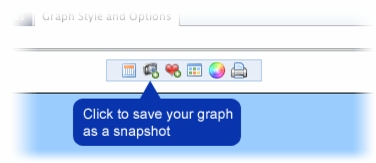
The snapshot of your graph is saved. You can now view, edit or delete your snapshot.
Viewing a Snapshot
To view a snapshot:
On the SAIS Main Menu, select Manage Your Snapshots.
The Manage Snapshots screen is displayed.
click the View/Edit icon.
The Edit Snapshot screen is displayed. This screen enables you to view the snapshot and its metadata.
You can copy the snapshot image from here to use it in other applications.
This screen also enables you to edit the snapshot metadata.
Editing Snapshot Metadata
You can edit a snapshot's name or comments.
To edit snapshot metadata:
Click in the Snapshot Name text box to edit the name.
Click in the Comments text area to edit the comments.
Click Save.
The page is refreshed and the changes are saved.
Deleting a Snapshot
To delete a snapshot:
On the SAIS Main Menu, select Manage Your Snapshots.
The Manage Snapshots screen is displayed.
Click the Delete icon.
The snapshot is deleted.

Table of Contents Back Previous Next
http://www.eddept.wa.edu.au
Tel: (08) 9264 4111
(08) 9264 5005
websupport@det.wa.edu.au