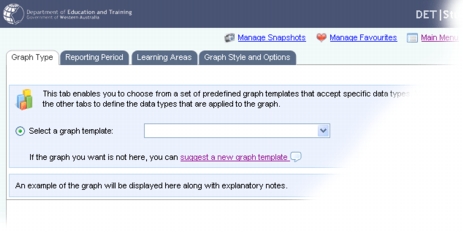
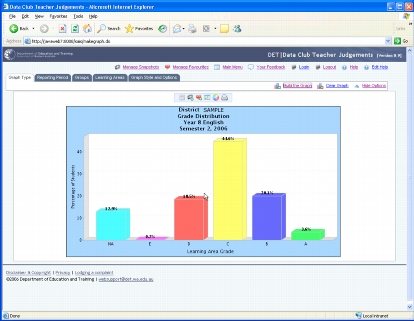
The Create a Graph screen is displayed.
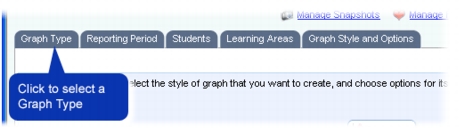
If not already selected, click on the Graph Type tab.The Graph Type options are displayed. This tab enables you to choose a graph type from a list of graph templates, your favourites or shared favourites.
If not already selected, click on the Select a graph template option button.
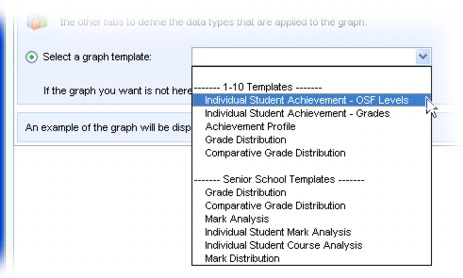
Select a graph template using the Select a graph template drop-down list.Once you have selected the graph type that you want to work with you can continue by selecting reporting periods.
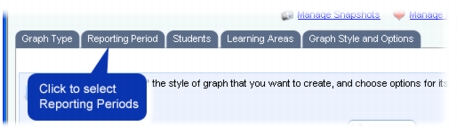
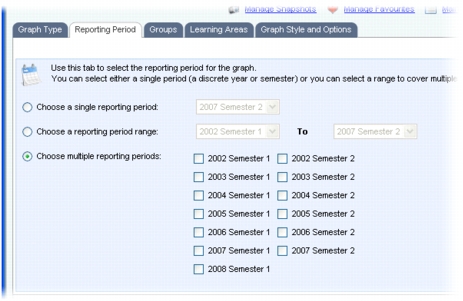
Click on the Reporting Periods tab.The Reporting Period options are displayed. This tab enables you to choose a single period (a semester), a reporting period range (from semester A to semester B), or multiple reporting periods (semester A, semester B, semester C).
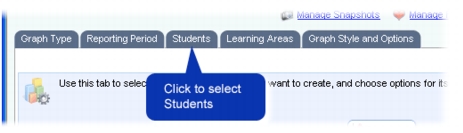
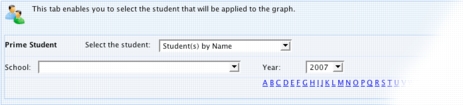
Click on the Students tab.The Students options are displayed. This tab enables you to choose a student, or multiple students. The resulting graph will only include data for the selected students.
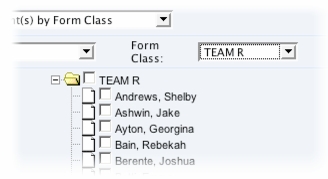
Use the Select the student drop-down list to choose how you want to select the student. You can select students by:
Use the additional drop-down lists (such as School, Year, Year Group, etc.) to further narrow down the student selection list. You must make a selection from each of the drop-down lists.
If you have chosen to select students by Name, you will also have to click on a letter from the Surname Initial generated alphabet to display students sorted by surname.If you are generating a senior school graph type that involves group grade or mark analysis, you are required to select the type of grade or mark to be used. A result type is used to refer to the selection of a grade or a mark.
Please note: This distribution differs from the Curriculum Council Mark in that it omits the scores of students who did not sit the exam, were identified as anomalous performers, or had their raw exam scores adjusted due to approved sickness or misadventure claims.
Please note: Due to the limited number of possible score points in some of these assessments (e.g. MSE Writing), there is not always exactly 10% of scores in each decile.
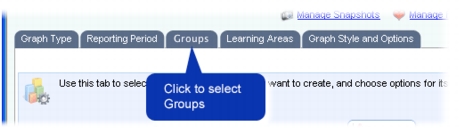
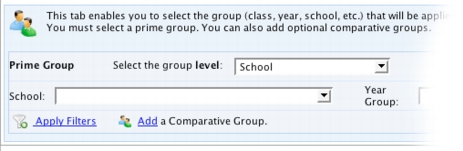
Click on the Groups tab.The Groups options are displayed. This tab enables you to choose a student group and, optionally, one or more comparative groups. The resulting graph will only include data for the selected groups.
Use the Select the group level drop-down list to choose the level of group for your graph. You can select groups by these levels:
Use the additional drop-down lists (such as District, School, Year Group, etc.) to further identify the group. You must make a selection from each of the drop-down lists.
Click Apply Filters if you want to further refine the group selection by gender, indigenous status or LBOTE, or to include student results from other schools.
When you make a selection from the list, the group data for the graph will be limited by your selection. For example, if you choose Male from the Gender list, the resulting graph will only include data for male students in the group.
Click Add a Comparative Group if you want to define an additional group for the graph. You would use this if you want to compare the achievements of one group (the Prime group) with another.Once you have chosen the prime group and, optionally, any comparative groups, you can continue by choosing learning areas.The Learning Areas tab displays a tree control that enables you to explore and select either:
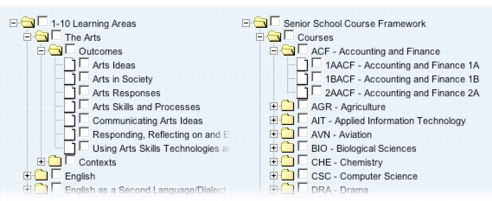
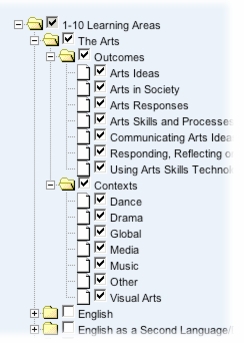
SAIS only uses system context data to generate graphs, not contexts that have been created in SIS for individual schools.To select items to be included in your graph, simply click the checkbox, adjacent to the folder icon, to select the item. When you select an item, all of the items that are hierarchically below the selected item (the child items) are automatically selected.For example, in the tree shown below the learning area called The Arts was selected. All of the learning outcomes and contexts below The Arts were automatically selected.The structure of the learning area tree that is displayed varies because it is generated in context to your Graph Type and Student/Group selections.This is most obvious in the structure differences between Year 1-10 graph types and Senior School graph types. For Year 1-10 the tree items include learning areas, outcomes and contexts, whereas for Senior School tree items include courses, course units and subjects (refer to Figure 8). However, the structure of the trees is also affected by more discrete graph type and student/group selections.Year 1-10 graph types: some of these graph types are designed to provided student achievement information based on learning area outcomes. When you select one of these graph types, the learning area tree structure will include learning areas, outcomes and contexts. However, other Year 1-10 graph types are based on grade information, and for these types the learning area tree structure will only include learning areas and contexts.Senior School graph types: the learning area tree for these graph types includes courses, course units and subjects, but the extent of these is determined by your assigned role in SAIS, and your student/group selections.If you select one of the Senior School graph types designed to provide information for an individual student, the learning area tree is rebuilt after you select the student, and it will only include courses, course units and subjects that the selected student is taking.If you select one of the Senior School graph types designed to provide information for a group of students, the learning area tree structure is based on your SAIS role and the group that you select.
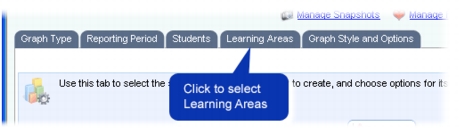
Click on the Learning Areas tab.
Once you have chosen the learning areas you can continue by setting graph styles and options, or by building your graph.A number of graph styles and options are available to enable you to configure the appearance of your graph. The styles and options available will depend on your choice of graph type.
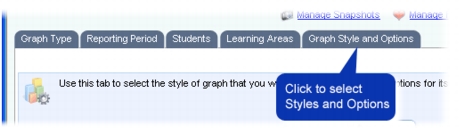
Click on the Graph Style and Options tab.
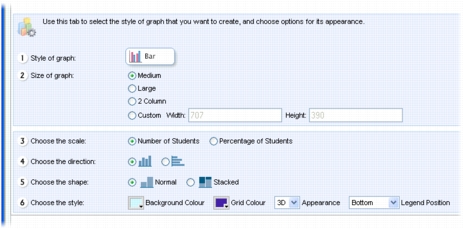
Use the Size of graph options to determine how large the image of your graph will be on the screen. The options are:
2 Column - 450wx 300h pixels. Selecting this option will display multiple, tiled graphs in two columns.
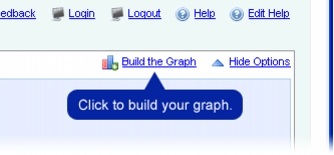
Ensure that you have selected a graph type and configured the options on the reporting period, students/groups, learning areas and styles tabs.You can adjust the graph's appearance or data by reselecting the tabs and changing your selections. Just click Build the Graph again to regenerate the graph.
|
http://www.eddept.wa.edu.au |
| Tel: (08) 9264 4111 | |
| (08) 9264 5005 | |
| websupport@det.wa.edu.au |